
Blog
Best Website Tools for Beginners

Key Takeaways:
- Drag-and-drop builders (Wix, Squarespace, Weebly) make site creation simple with visual editors and hosting included.
- WordPress paired with managed hosting provides greater flexibility through themes and plugins without heavy coding.
- Prebuilt templates and starter themes speed design while keeping responsive layouts and accessibility in mind.
- Integrated domain registration, SSL, and basic SEO tools reduce setup friction and improve search visibility.
- Beginner-friendly tutorials, community forums, and customer support shorten the learning curve and help resolve issues quickly.
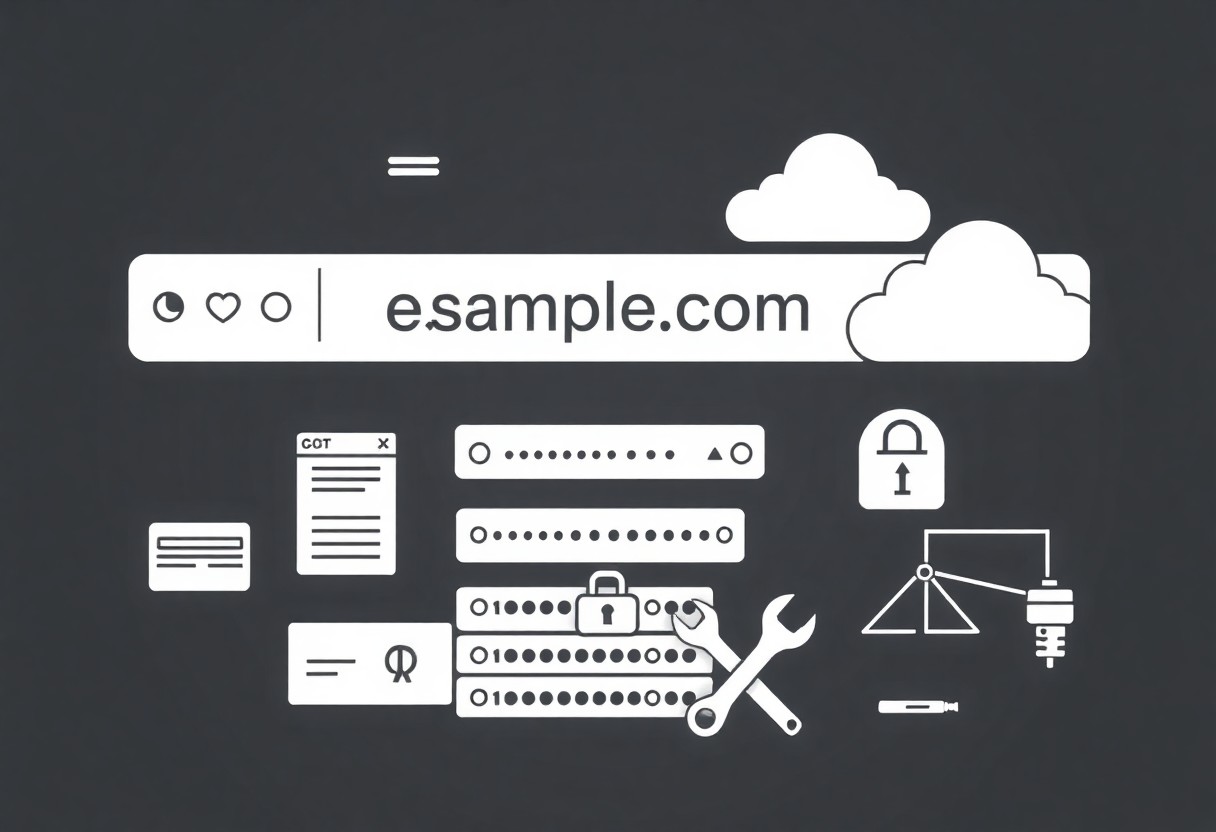
Domain Registration and Web Hosting Essentials
Domain basics matter: I guide you through picking names, securing extensions, and matching hosting. I recommend checking reviews like The Best Website Builders We’ve Tested for 2026 to compare options. Prioritize clear renewal fees and WHOIS privacy to protect your site.
Selecting a Reliable Domain Registrar
Registrars differ widely; I pick ones with simple dashboards, transparent fees, and domain transfer locks. You should choose providers offering WHOIS privacy and easy transfers so your domain stays under your control.
Evaluating Beginner-Friendly Hosting Providers
Hosting choices affect site speed and uptime; I test load times, support response, and setup ease. You want hosts with one-click installs, free SSL, and responsive 24/7 support so you can fix issues fast as you learn.
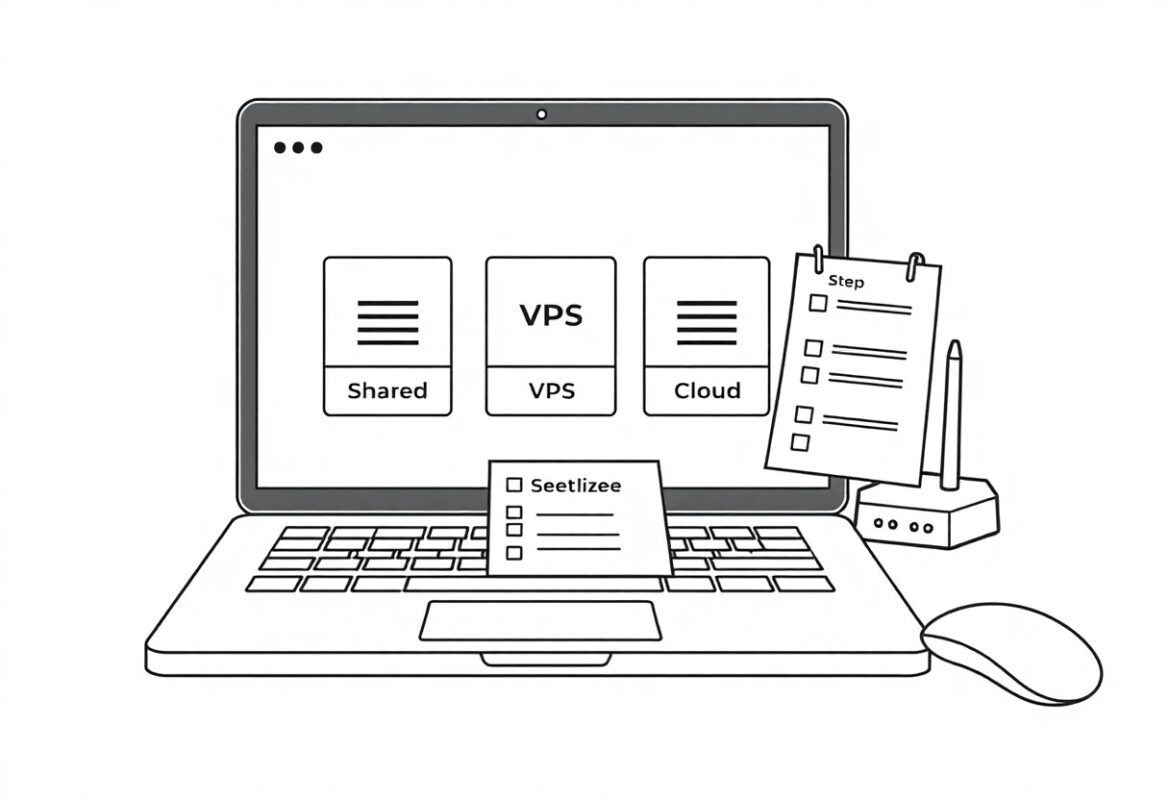
When I compare plans I weigh cost versus features: shared hosting can be cheap but carries a higher downtime risk, while managed hosting gives automatic backups, security patches, and easier scaling; you should match the plan to your expected traffic and how much server work you want to handle.
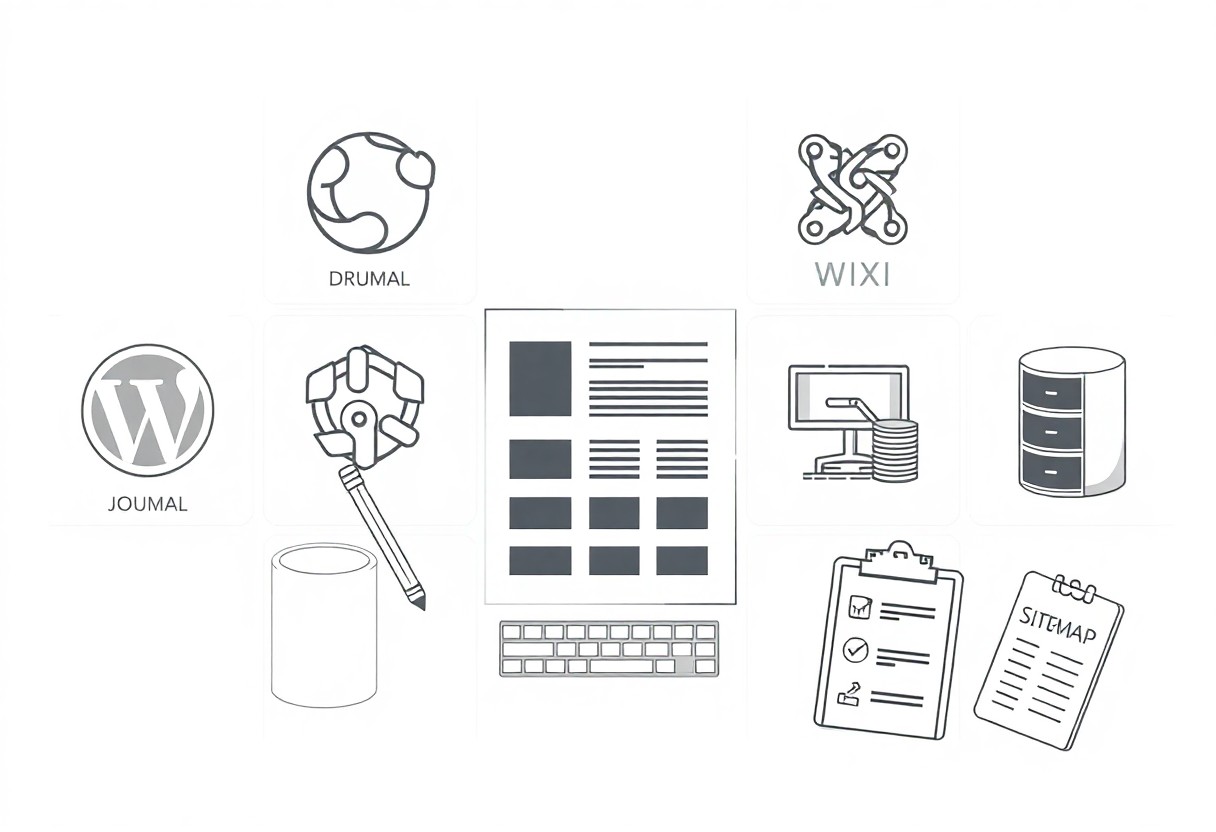
Leading Content Management Systems (CMS)
Here I outline top CMS choices I use and recommend, so you can pick one fast; I focus on ease for beginners, plugin ecosystems, and highlight the security risks you should patch immediately to protect your site and your visitors.
The Versatility and Power of WordPress
WordPress is my go-to for sites that need extensive customization; I show you how themes and plugins give freedom, but I warn that poorly maintained plugins are a major security hazard you must monitor.
Streamlining Content with Managed Platforms
Managed platforms cut hosting headaches, so I recommend them if you want quick setup; they provide automatic updates and backups, but you should note the reduced control over server settings and premium costs.
I often choose managed hosts for clients because I can focus on content while they handle scaling; you should check export options and third-party integrations to avoid being locked into a platform.
Intuitive Drag-and-Drop Website Builders
I rely on drag-and-drop builders to get projects live fast; I show you how to use templates and widgets so your site looks professional. Watch for vendor lock-in as the main risk and enjoy the speedy visual workflow that saves you hours.
Visual Design with Wix and Squarespace
Wix and Squarespace offer polished templates I use to craft visuals quickly; I guide you through block editing so your brand stays consistent. Expect drag-and-drop control and be mindful of template constraints that can limit unique customizations.
Rapid Deployment via No-Code Solutions
No-code platforms let me spin up landing pages in hours, so you launch campaigns immediately; I watch for data and security limits while enjoying the speed that reduces time-to-market.
Deploying no-code, I prioritize integrations and backups so your app scales; I test forms, payment flows, and analytics to catch issues early. Watch for limited API access that can block complex features, and value the fast prototyping that helps you validate ideas before investing in custom development.
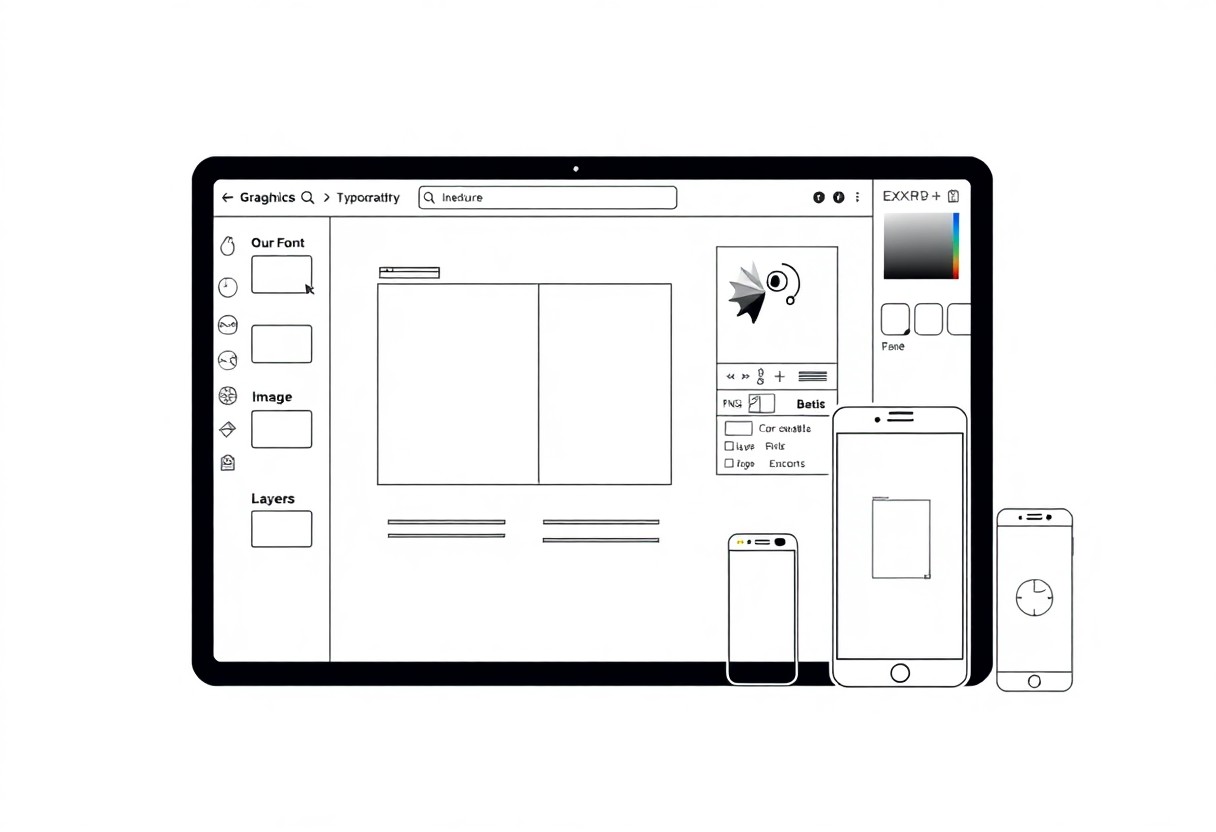
Design and Visual Asset Tools
Design tools help me create a cohesive look; I rely on templates, icon sets and community input like Easy to use website builder? : r/smallbusiness to pick options, keeping loading speed and accessibility first.
Simplified Graphic Creation with Canva
Canva makes it easy for me to build banners and social images; I pick templates, tweak fonts and export optimized files so you get professional-looking visuals without a steep learning curve.
Sourcing High-Quality Professional Imagery
Sourcing photos from stock sites and creators saves me time; I check licenses and model releases, and I avoid images that could cause copyright risk or misrepresentation.
Images from paid libraries usually give me clear license terms, while free sources need extra checks; I confirm commercial rights, retain attribution details, select appropriate resolution to prevent slow pages, compress files, and add descriptive alt text so your site stays fast and accessible.
Search Engine Optimization (SEO) Foundations
SEO basics I recommend focus on title tags, meta descriptions and site speed; I also point you to The 7 Easiest Website Builders For Beginners In 2026 for simple builders that help rank faster.
Essential Keyword Research Tools for Newbies
Keyword planners and free tools I use help you find low-competition terms; you can test volume and intent, then add high-opportunity phrases to your pages.
Utilizing On-Page SEO Optimization Plugins
Plugins like Yoast or Rank Math I install guide your titles, meta tags and readability; you get step-by-step checks so your pages meet search expectations with clear recommendations.
I recommend configuring only one plugin to avoid conflicts, enable XML sitemaps, set focus keywords and monitor for performance slowdowns; back up before big updates so your optimizations stay intact.
Performance and Analytics Monitoring
I rely on tools that track traffic, errors, and load times so I can spot drops in conversions and fix issues fast; real-time alerts and clear dashboards keep your site healthy and profitable.
Tracking Visitor Behavior with Google Analytics
Google Analytics lets me map user paths, track goals, and see which pages lose visitors; I use behavior flow and events to improve conversions and guide your content choices.
Optimizing Load Speeds and Site Health
Speed audits help me cut load times, trim scripts, and prioritize images so your pages open faster; I monitor TTFB and Core Web Vitals to maintain good search rankings.
Tools like CDN, caching plugins, and image compressors let me reduce payloads, while I remove heavy third-party scripts and replace slow hosts; regular checks of mobile speed and uptime catch issues before they hurt your conversions.
Final Words
Taking this into account, I recommend beginner-friendly website tools that let you learn core skills quickly, reduce setup time, and give your projects professional polish; I’ll guide you through choices so you can build confidence and grow your skills steadily.
FAQ
Q: Which website builder is best for complete beginners?
A: Wix, Squarespace, WordPress.com, and Weebly rank highest for ease of use. Wix offers a drag-and-drop editor and a large template library for fast visual results. Squarespace provides polished, designer-focused templates that work well for portfolios and small businesses. WordPress.com gives more room to grow with blogging and plugin options while handling hosting for you; choose WordPress.org only if you are ready to buy separate hosting and manage updates. Weebly remains simple and budget-friendly for basic sites. Pick a builder based on whether you prioritize simple setup, design style, future expandability, or built-in e-commerce features.
Q: Do I need to buy web hosting and a domain as a beginner?
A: Domain and hosting are separate but both needed for a public website. Hosted site builders like Wix, Squarespace, and WordPress.com include hosting and offer domain registration in one package, which simplifies setup. Self-hosted WordPress (WordPress.org) requires you to buy hosting from providers such as Bluehost, SiteGround, or Hostinger and register a domain through the host or a registrar like Namecheap. Always enable an SSL certificate for secure HTTPS access; most hosts and builders include SSL for free.
Q: What design and image tools should beginners use?
A: Canva provides templates, drag-and-drop graphic editing, and ready-made social and web assets with minimal learning curve. Unsplash and Pexels supply free high-quality photos suitable for websites. TinyPNG or ImageOptim reduce image file size to improve load times. Icon sets like Font Awesome and simple layout templates from your builder speed up design work. Use a consistent color palette and font pairing to keep pages visually coherent.
Q: Which analytics and SEO tools do beginners need to track and improve their site?
A: Google Analytics 4 and Google Search Console form the baseline for traffic and search performance tracking. Add basic on-page SEO: custom meta titles and descriptions, heading structure, and descriptive alt text for images. For WordPress users, Yoast SEO or Rank Math simplifies metadata, XML sitemaps, and schema markup. Monitor page speed with Lighthouse or PageSpeed Insights and fix slow-loading assets. Regularly submit an updated sitemap to Search Console to help indexing.
Q: How can beginners keep their website secure and backed up?
A: Turn on SSL and use strong, unique passwords combined with two-factor authentication where available. Keep the site platform, themes, and plugins up to date to reduce vulnerability. Limit the number of third-party plugins to decrease attack surface. Use automated backups provided by your host or a plugin and store copies offsite. Install a security plugin or service (for WordPress, options include Wordfence or Sucuri) and enable basic firewall and malware scanning. Test restores periodically so you can recover quickly if needed.